Replacing Your Wi-Fi Router? A Smart Home Reconnection Checklist
· HomeTechPulse
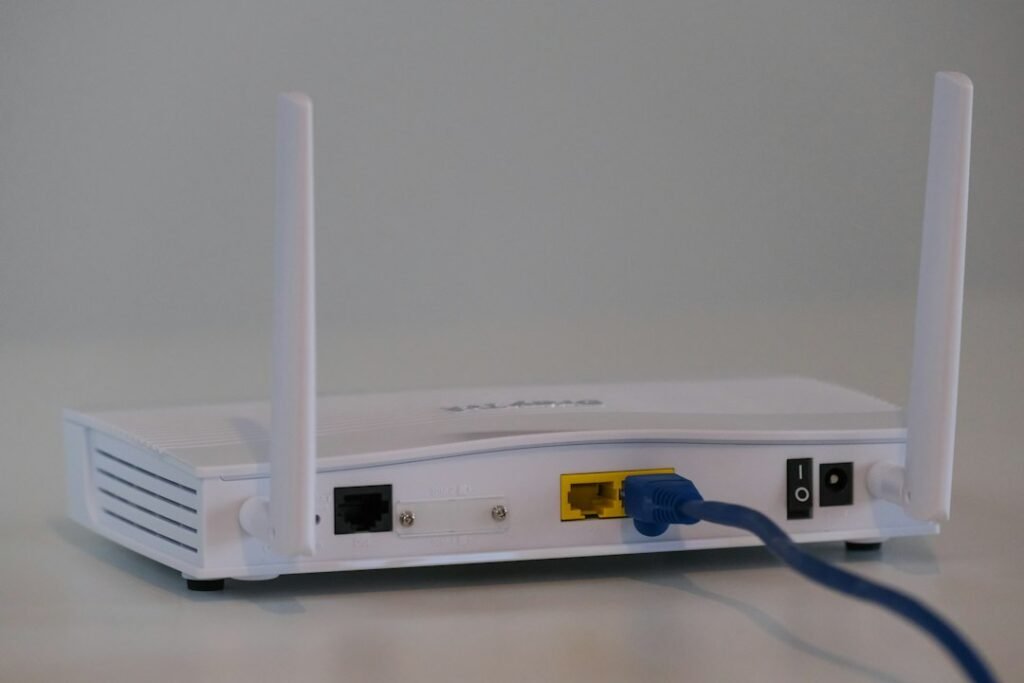
Replacing a router can leave you with a working laptop and a room full of devices marked offline. The useful question is not just “Does the internet work?” It is “Which device needs which connection, and how will I restore each everyday control?”
This smart home router replacement checklist helps you prepare before disconnecting the old equipment, reconnect in a manageable order, and record what actually works afterwards. It is an editorial planning guide, not a router review or a report of a hands-on migration.
1. Define the change before unplugging anything
Write one sentence describing the job: “Replace the main router while keeping the existing smart-home controller,” for example. Replacing a router, renaming Wi-Fi, moving accounts, and rebuilding automations are different jobs. Combining them makes it harder to identify which change caused a failure.
Choose a time when nobody needs the connection for work or an essential household task. Tell other people what will be unavailable. Confirm ordinary physical controls remain usable, and do not include medical equipment, alarms, access-critical locks, or other safety-dependent systems in an informal trial. Follow their provider’s migration instructions separately.
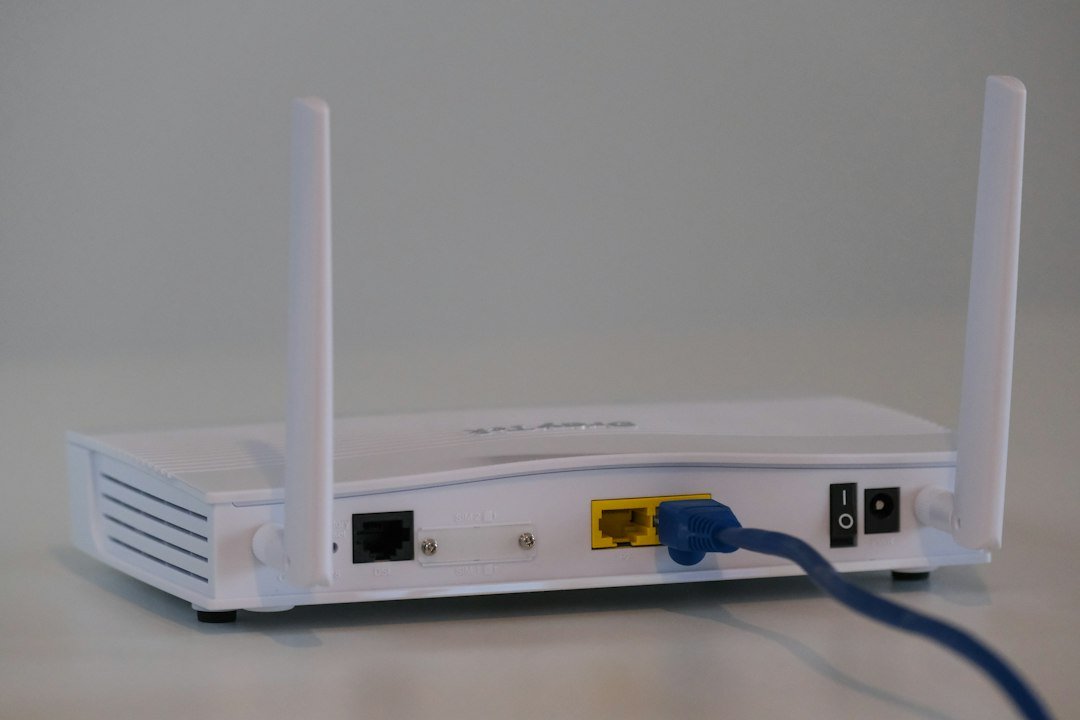
Take a private photograph of the existing cable arrangement. Label the destination of each cable in your notes, rather than assuming every port has the same purpose. Keep the old equipment and its configuration available until the replacement passes your checks; do not factory-reset it as a first step.
2. Make a device inventory, not a password document
List devices room by room, including hubs and controllers that may be tucked behind furniture. Store passwords, recovery codes, and pairing codes securely, outside the shared checklist. Your worksheet can say where the information is kept without containing the secret itself.
| Record | Example entry | Your note |
|---|---|---|
| Device and exact model | Bedroom lamp; model from its label | ________ |
| Connection path | Wi-Fi directly, Ethernet, or through a named hub | ________ |
| Normal control | Manufacturer app plus a physical button | ________ |
| Setup account | Account owner confirmed; credentials stored securely | ________ |
| Manufacturer’s reconnect instructions | Saved link for this exact model | ________ |
| Fallback and priority | Manual lamp switch; restore after controller | ________ |
Mark an unknown connection as “check,” not “Wi-Fi” by default. If the device depends on a hub, put that hub on the list too. Our Matter, Thread and Wi-Fi guide can help you separate the labels before you plan the move.
3. Choose the reconnection path for each device
Do not promise yourself that copying the old Wi-Fi name and password will reconnect every product. Check the manufacturer’s guidance and the replacement router’s supported settings before deciding whether to retain the network name or create a new one. Record that decision, especially if someone else is installing the router.
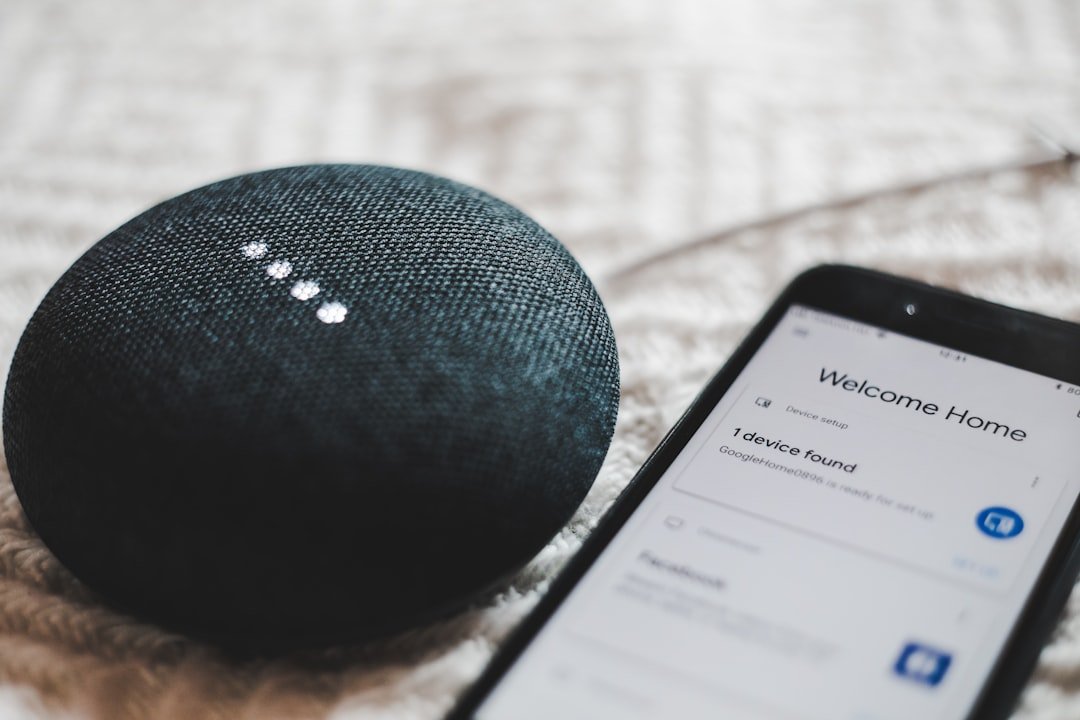
Google’s guidance says a Nest or Home speaker or display may need setup again after a Wi-Fi name, password, or service-provider change. That is a product-specific example, not a universal instruction to reset every smart-home device. Read Google’s reconnection guidance.
For each inventory row, choose one next action: wait for reconnection according to its instructions, use the documented network-change process, or obtain the missing instructions. An unresolved model-specific requirement is a reason to pause that device, not to try unrelated reset combinations.
4. Reconnect in dependency order
Use this as a planning sequence, while following the router and device manufacturers’ installation steps:
- Establish the new network. Confirm an ordinary phone or computer can join it and use the internet. Keep this result separate from smart-home tests.
- Restore controllers and hubs. Check their own status before investigating every device that depends on them.
- Choose one non-critical device. Use its documented reconnect process, then test its normal control and physical fallback.
- Move the remaining devices in small groups. Record a result for each one before starting the next room.
- Test routines last. A working device is a clearer starting point than a failing multi-device automation.
For Home Assistant users with Matter devices, network reachability matters as well as Wi-Fi credentials. Its documentation explains that Matter uses local IPv6 and mDNS traffic, and that network segmentation or multicast filtering can interfere with discovery. Thread devices also depend on a suitable border-router connection. Check Home Assistant’s Matter troubleshooting requirements.
Do not disable firewall protections or open internet-facing ports as a generic fix. If a managed or segmented network is involved, ask the person responsible for it to check the documented local-network requirements.
5. Test the household task, not only the online badge
Use a small acceptance sheet. “Online” is a status label; the result you care about is whether the expected action succeeds from the place and control method you normally use.
| Check | What to record |
|---|---|
| Direct control | Device, app/button, time, and observed response |
| Usual room | Whether the command works from the normal location |
| Household access | Whether another authorized household member can use it |
| Routine | Expected trigger and action; actual result |
| Physical fallback | Whether ordinary manual control still works |
| Unresolved item | Exact symptom, next check, and responsible person |
An illustrative note is more useful than a tick: “Bedroom lamp works in its app; bedtime routine still fails; check the routine’s device target.” That narrows the next step without claiming the router is definitely at fault. For routine-specific failures, use our Home Assistant automation diagnosis guide.
6. Stop before a reset becomes the experiment
If several devices fail, look first for a shared dependency in your inventory. If only one fails, compare its exact setup requirements with what changed. Google’s Wi-Fi troubleshooting guide starts with basics such as device power, a working network, and correct credentials. See the official speaker/display connection checks.
Rebooting and factory-resetting are not interchangeable. Google states that a factory reset clears device data and cannot be undone. Before any manufacturer’s reset procedure, understand what it removes and what you will need to set up again. Read Google’s reset warning and model-specific instructions.
Set a stopping point in advance: if you cannot restore the essential ordinary controls within your maintenance window, pause and follow your documented rollback or support plan. Do not improvise a second router connection or erase configurations merely to feel that another step has been tried.
Finish with a short handover
Keep three lists: working, deliberately postponed, and needing help. Add the date, the changed equipment, and links to the instructions you used. A household member should be able to tell which controls are available without reading your entire troubleshooting history.
If remote access is the only remaining problem, distinguish that from control inside the home. Our local versus cloud control comparison explains why those are separate checks.
Sources and method
Official Google Home and Home Assistant documentation linked beside the relevant claims was checked on 23 September 2026. The inventory, order-of-work plan, and acceptance sheet are original HomeTechPulse editorial tools. Examples are hypothetical; no equipment testing, migration success rate, or personal installation experience is claimed. The photographs are illustrative and do not establish compatibility.