Share Smart Home Access Without Sharing Passwords: Apple, Google, and SmartThings
· HomeTechPulse

Direct answer: do not give another person your Apple, Google, or Samsung password just so they can use the lights, lock, or thermostat. Invite their own account through the smart-home platform, then grant the narrowest role that still lets them complete the task. Apple Home is the most explicit about scheduled guest access to supported security accessories; Google Home offers flexible home-wide member permissions; SmartThings shares an entire Location rather than one room.
Documentation checked: October 5, 2026. This is a documentation-based comparison, not a hands-on test of these platforms or devices.
The important difference: account access is not device access
A shared platform login exposes far more than a light switch. It can mix personal recommendations, purchases, account recovery, location data, camera history, and other services with smart-home control. A platform invitation keeps each person on a separate account and gives the owner a visible member list that can be reviewed or revoked.
The access path should look like this:
- Owner account → creates an invitation inside the home app.
- Invitee account → accepts the invitation on their own phone.
- Platform role → defines which home controls, settings, or history are available.
- Device or bridge → carries out the command through the shared home.
If a lock, camera, or alarm also has a manufacturer app, check that app separately. Removing someone from the main home platform may not remove permissions granted in a second app. Apple explicitly warns about this for accessory apps in its home-sharing documentation.
Apple Home vs Google Home vs SmartThings
| Platform | Best-fit role | Scope | Important requirement or limit |
|---|---|---|---|
| Apple Home | Resident for household members; Guest for scheduled entry | Residents can control the whole home. Guests can be limited to supported doors, locks, and other security accessories. | Remote access and Guest access require a home hub such as a HomePod or Apple TV 4K. Shared users cannot add a HomePod, Apple TV, or AirPlay-compatible TV/speaker. |
| Google Home | Member for limited control; Admin for co-managers | Member access is home-wide for basic controls. Settings and Activity are separate optional permissions. | Admin is broad: it can manage people, devices, services, history, and the home itself. A Member cannot add or remove devices or people. |
| SmartThings | Member of a Location | The invitation applies to the selected Location and its connected devices. | Samsung says members cannot be added directly to a room. The Location owner is the person who can remove members. |
The table reflects current instructions from Apple Support, Google Home Help, and Samsung Support. Menus and permission labels can change, so confirm the final permission summary shown in your app before sending an invitation.
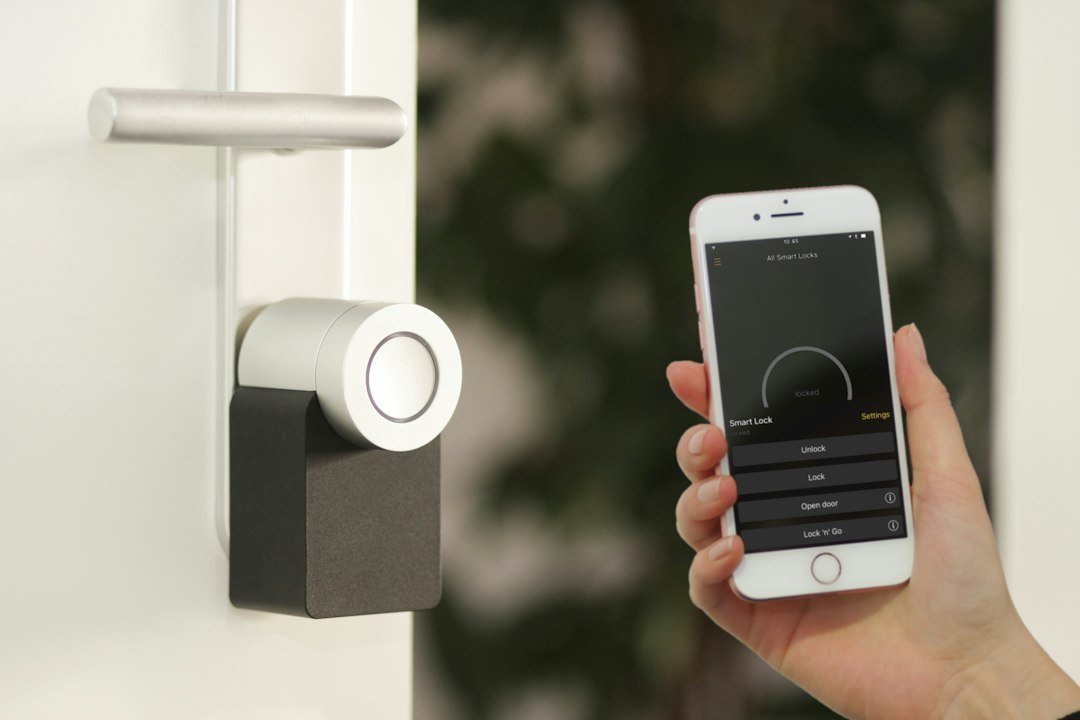
Featured photo: Household members reviewing access on a smartphone. Photo by Vitaly Gariev via Unsplash.
Choose the role before opening the app
Write down the person’s actual job first. “Needs smart-home access” is too vague. A housemate may need lights, climate control, and automations every day. A dog walker may only need the front door during a two-hour window. A technician may need you to operate a device while they diagnose it, not a permanent invitation.
| Person | Needed outcome | Sensitive access to avoid | Likely choice |
|---|---|---|---|
| Household co-manager | Daily control and system changes | None, if fully trusted | Apple Resident with edit permission, or Google Admin |
| Household member | Daily device control | Member management, device removal, camera history | Apple Resident without Add and Edit; Google Member with Settings and Activity off |
| Recurring visitor | Timed entry through a supported lock or door | Lights, cameras, automations, account settings | Apple Guest where the accessory and home hub support it; otherwise use a device-specific guest code or app feature |
| Short-term helper | One task while the owner is present | Permanent membership | Owner-operated control or a temporary manufacturer feature, not a broad home invitation |
Google’s current permissions are especially useful when you need basic device control without history. A Member can use basic controls, while the owner can leave Activity off to withhold camera, lock, presence, and other home history. Leave Settings off when the person should not change device settings or household automations. Google documents these two toggles separately in its people and permissions guide.
Exact invitation paths
Apple Home: Resident or Guest
- Open the Home app on iPhone, iPad, or Mac.
- Select Add → Add People.
- Choose Resident or Guest.
- Select a contact with an Apple Account, or enter the Apple Account email address.
- Review the role and send the invitation.
For a Resident, open More → Home Settings → the person’s name. Decide whether to enable Control Accessories Remotely and Add and Edit Accessories. For a Guest, select the supported security accessories and schedule that match the visit. Apple notes that the Guest role is unavailable if the home has no eligible security accessory, and that remote or guest access requires a home hub.
Expected outcome: the invitee accepts under Home Settings → Invitations and sees only the access promised by the selected role. If that fails: verify the email belongs to the invitee’s Apple Account, update the relevant Apple devices, and confirm that the home hub is online before recreating the invitation.
Google Home: Member or Admin
- Open the Google Home app and switch to the correct home.
- Select Add → Home member.
- Enter the person’s name or email address.
- Choose Admin or Member.
- For a Member, decide whether to enable Activity or Settings, then send the invitation.
A Member with both optional permissions off is the safer starting point for ordinary household control. Turn on Activity only if the person genuinely needs camera, lock, automation, presence, or similar history. Turn on Settings only if they need to change device settings or household automations. Google says an Admin can add or remove people, add or remove devices, manage services and settings, and delete the home, so it is a co-manager role rather than a convenience toggle.
Expected outcome: the invitation appears in the invitee’s Google Home inbox and the person joins with the selected access level. If that fails: confirm the correct Google Account, check whether the person requested to join instead, and note Google’s documented account and family-group restrictions.
SmartThings: share a Location
- Open SmartThings and select the intended Location.
- Open More options → Manage location/members.
- Select Invite member.
- Send an invitation to the person’s Samsung account email, or use the displayed QR code.
- Have the invitee accept while signed in to SmartThings with their Samsung account.
Samsung states that the new member can control and manage connected devices in that Location. It also states that membership is not assigned directly to a room. If the person should not reach every device in the Location, a Location-level invitation is too broad; use a narrower device-specific guest method if the manufacturer provides one.
Expected outcome: the person appears under the Location’s Members list and can control that Location’s devices. If that fails: confirm the correct Location, verify the invitee is signed in to the intended Samsung account, and resend through the alternate email or QR method.
Worked configuration: housemate plus weekly dog walker
This example is hypothetical and is meant to show the decision process, not to claim a tested installation.
Home: smart lights, thermostat, two cameras, and a supported front-door lock. People: one trusted housemate and a dog walker who visits Tuesdays and Thursdays from 1:00–3:00 p.m.
- Housemate: add a regular household role. In Apple Home, use Resident, leave Add and Edit Accessories off initially, and enable remote control only if needed. In Google Home, use Member with Activity off; enable Settings only if the housemate must edit automations or device settings.
- Dog walker: do not add a Google Home Member or SmartThings Location Member merely for entry, because those roles are broader than one lock. In Apple Home, Guest can be appropriate when the lock is eligible and a home hub is present. Otherwise, use the lock maker’s documented temporary code or guest feature.
- Verification: ask each person to perform only the required task. The housemate should control an ordinary light but not see history that was withheld. The dog walker should unlock only the intended door within the permitted schedule.
- Failure decision: if the platform cannot express the narrow access you need, do not “solve” it by sharing the owner password. Change the access method or choose a device whose official guest controls match the requirement.
Five-minute access review
- Open the people or members list in every smart-home platform you use.
- Remove former residents, contractors, and expired guests.
- Check camera, lock, alarm, and bridge manufacturer apps for separate sharing.
- Review Google Activity access and Apple remote/edit permissions.
- Confirm that scheduled guest access still has the correct dates and accessories.
- Record who owns each device or subscription before removing the person who originally set it up.
This review pairs well with the broader Smart Home Privacy Audit. If confusing room or device names make permission checks difficult, use the device naming system before inviting more people.
Bottom line
Use separate accounts and platform invitations. Give a full-management role only to a genuine co-manager. For ordinary household control, start with a limited member role and keep history or settings permissions off until there is a specific reason to enable them. For visitors who only need a door, prefer a scheduled guest credential over whole-home membership. If a platform’s role is broader than the task, that is a signal to use a narrower device feature—not to share the owner password.
Official sources
- Apple Support: Share control of your home (published March 31, 2026; checked October 5, 2026)
- Google Home Help: Manage people and permissions in the Google Home app (checked October 5, 2026)
- Samsung Support: Invite members using the SmartThings app (checked October 5, 2026)